

This article describes how to configure the ReadyNAS to allow access to a share for a combination of regular local users (SMB) and ReadyCLOUD users. It is assumed that there are already some local users/groups configured on the ReadyNAS.
If you require a different ReadyCLOUD configuration, see other examples.
To configure ReadyCLOUD:
1. Log on to the ReadyNAS admin interface and go to the Cloud tab.
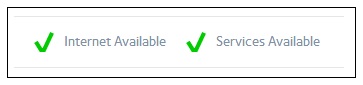
2. Verify that there is a green check mark beside the Internet Available and Services Available fields as shown below.
If not, verify that the ReadyNAS has a valid default gateway and DNS configuration.
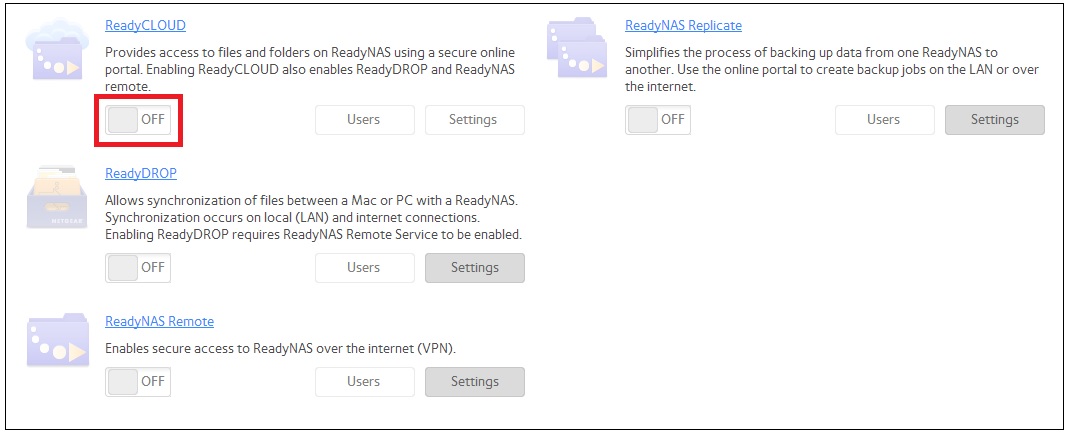
3. Turn ReadyCLOUD on by clicking the button marked in red below.
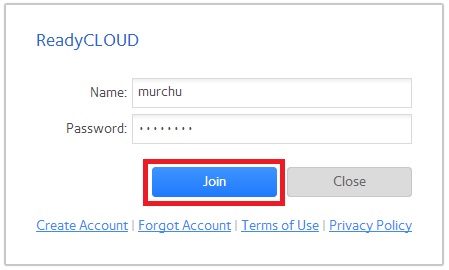
4. At the prompt, enter your ReadyCLOUD username and password (case sensitive) and click the Join button.
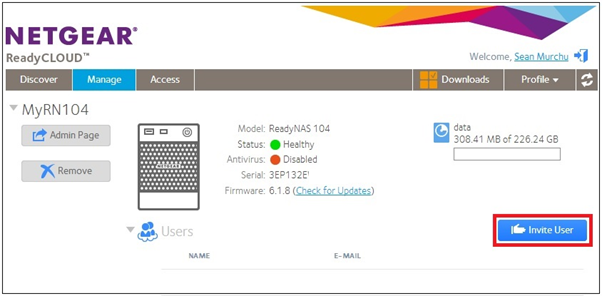
Your ReadyNAS is now joined to ReadyCLOUD. The account that you used is your ReadyCLOUD admin (signified by the icon marked in read below):

5. Invite the remote users to ReadyCLOUD.
This procedure must be done through the ReadyCLOUD portal.
6. Go to https://readycloud.netgear.com and log in with the ReadyCLOUD account that you used in step 4.
7. Go to the Manage tab and click the Invite User button.
8. Enter the email address of the user that you want to invite and click the Search button .
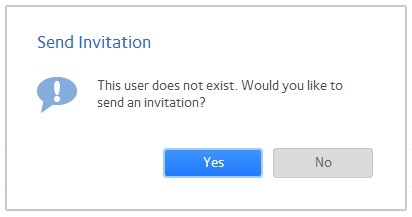
If the user does not have a valid ReadyCLOUD/ReadyNAS Remote account, you are prompted to send an invitation to the specified email address.
After this user creates an account, he or she is joined to ReadyCLOUD on your ReadyNAS.
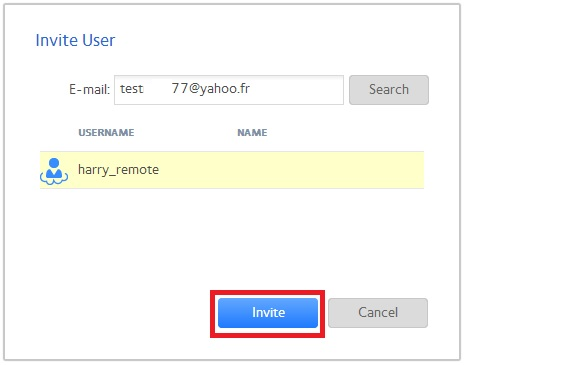
9. If the user already has a valid ReadyCLOUD/ReadyNAS Remote account, click the Invite button.
This user is joined to ReadyCLOUD on your ReadyNAS (they receive an email notification).
10. Repeat this step for other users that you want to invite.
To configure permission settings for local users and groups on the share:
1. Log in to the management interface of your ReadyNAS account and go to the Shares tab.
2. Click on the share and click the Settings button.
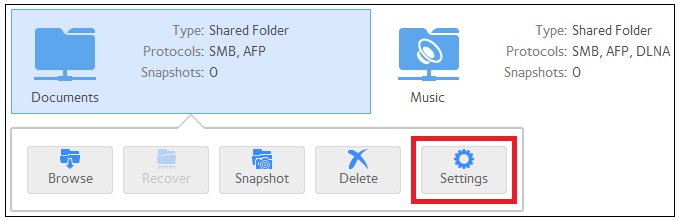
3. Go to the Network Access tab.
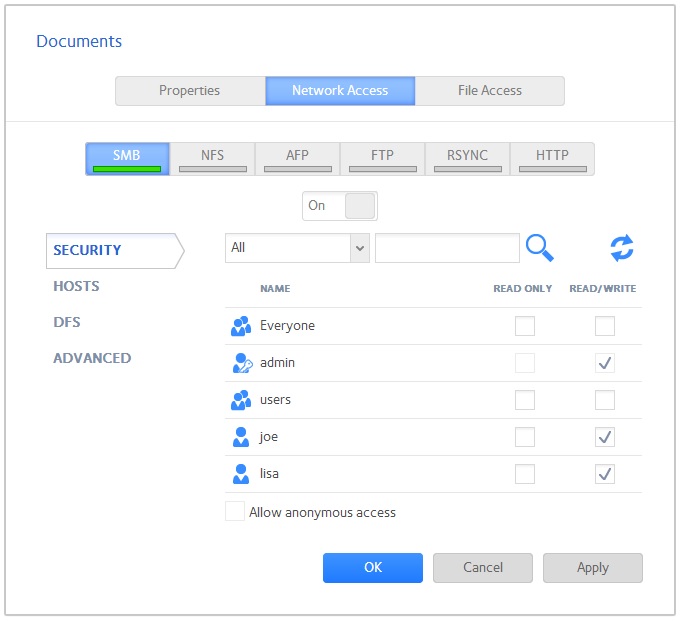
This action takes you to the SMB settings for the share.
4. Clear the read/write option for the Everyone group and enable access for users and groups as needed.
In this example, we allow read/write access for two users, joe and lisa. The admin user always has access.
To configure permissions settings on the same share for ReadyCLOUD users:
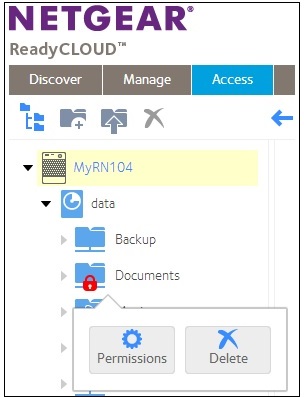
1. On the ReadyCLOUD portal, go to the Access tab.
As the ReadyCLOUD admin, you see all shares and have the rights to set permissions on these shares.
2. Right click on the Documents share and click the Permissions button.
The permissions windows opens.
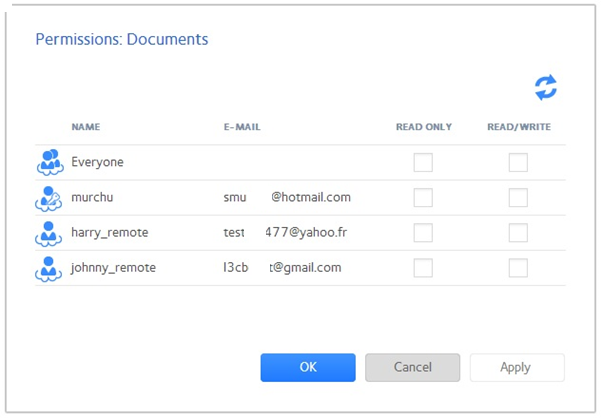
3. Allow read/write access for the required ReadyCLOUD users and click the OK button.
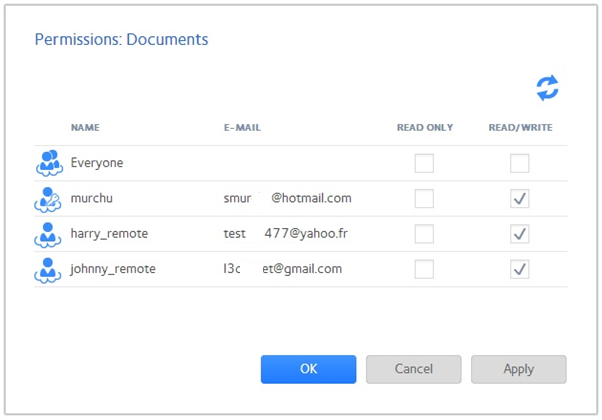
Access is restricted to the specified ReadyCLOUD users.
The specified ReadyCLOUD users can access the Documents share (and any other shares to which they have access) by logging in to the ReadyCLOUD portal. The specified local users can also access the share locally through SMB.