

Use the boot menu to restart or troubleshoot your ReadyNAS storage system. Your storage system has the following boot modes:
- Factory reset. Performs a short disk test and then allows you to reset your system to the factory defaults or switch between X-RAID and Flex-RAID. The system performs the disk test, which takes about 5 minutes, waits 10 minutes, and then restores the system to its factory settings. During the 10-minute window, you can shut down the system to avoid erasing its settings and files, or you can use RAIDar to format the system’s disks as Flex-RAID instead of X-RAID. If you do not shut down the system or use RAIDar, the system is reset to factory settings, all files on the system are erased, and the disks are formatted using the same disk configuration that was previously used. (For more information about X-RAID and Flex-RAID, see the ReadyNAS RAIDiator 4.1 Software Manual, which is available at http://downloadcenter.netgear.com/en/product/ReadyNAS 1100.)
- OS reinstall. Reinstalls the firmware from the system’s internal flash to its disks. Use the OS reinstall boot mode when the system crashes and corrupts some configuration files. OS reinstall boot mode also resets some settings on your system, such as Internet protocol settings and the administrator password, to defaults.
- Tech support. Boots into a low-level diagnostic mode. Use the tech support boot mode only when instructed to do so by a NETGEAR technical support representative.
- Skip volume check. Bypasses file system checks. After a system crash, the system tries to scan and fix the volume using a file system check. If several problems are found on a disk, this process can stall, causing the system not to boot. Use this option to skip the scan and let the system boot. Use this boot mode only if instructed to do so by a NETGEAR technical support representative. Otherwise, you might lose data.
- Memory test. Performs a memory test. The pass or fail result is reported using the system’s LEDs. Contact a NETGEAR technical support representative to interpret memory test results.
- Disk test. Performs an offline full disk test that can take 4 hours or more, depending on the size of your disks. To view the results of the test, use the RAIDar discovery tool.
- TFTP boot. Replaces the firmware on your system with an image from your computer. Use this boot mode only if instructed to do so by a NETGEAR technical support representative.
- USB boot. Replaces the firmware on your system with an image from a USB flash drive connected to the system. Use this boot mode only if instructed to do so by a NETGEAR technical support representative.
To access the boot menu:
To perform an OS Re-install or Factory Default, this is managed via the Reset button on the front of the chassis.
- Get a straightened paper clip and depress the hidden switch in the pinhole while the power is off, and then power on the ReadyNAS.
- To perform other options such as Skip Volume Check, Tech Support Mode, and Memory Test, this is managed via the Power button
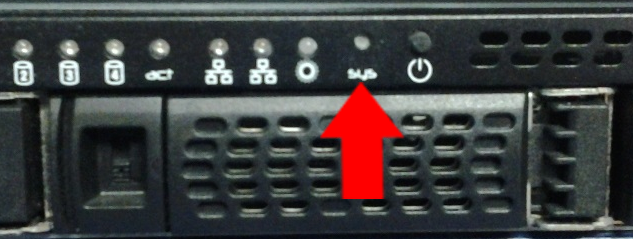
- With the system off, hold down the Power button, and wait for the desired LED flashes.
- Release the Power button when the option you desire is active.
| Button to Hold | Time to Hold | LED flashes | Boot Menu Mode |
|---|---|---|---|
| Power | 5 seconds | 1 | Skip Volume Check |
| Power | 10 seconds | 2 | TFTP Boot |
| Power | 15 seconds | 3 | Tech Support Mode |
| Power | 20 seconds | 4 | USB Boot |
| Power | 25 seconds | 5 | Memory Test |
| Reset | 5 seconds | 1 | OS Re-install |
| Reset | 30 seconds | 2 | Factory Default |
Last Updated:07/07/2025
|
Article ID: 24873