

This article provides step-by-step procedures for initial internet connectivity via Wireless WAN mode using NETGEAR genie and manual method.
NETGEAR genie method:
- Obtain the Wi-Fi network name and password from the internet connection.
- Slide the switch on the side of the PR2000 to the Wireless position.
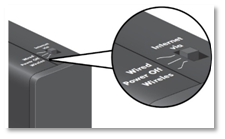
- Plug the PR2000 into a wall outlet (alternatively you can also supply power to the PR2000 via micro USB cable) and wait for 30 seconds.
- Connect your device to the PR2000 either via wired or wireless:
If you are using a wired computer, make sure that it is securely plugged into the LAN port (either Blue or Yellow port will work in this case) of the PR2000.
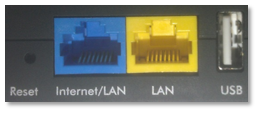
If you are using a wireless computer or tablet/smart phone, look for the PR2000 SSID from the available Wi-Fi network list and connect to it by typing the password (Network Key/Passphrase).
The PR2000 default wireless network name (SSID) and password (Network Key/Passphrase) can be found on the label, under the serial number and MAC address.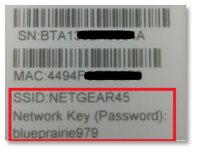
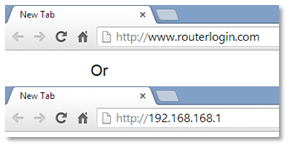
- From your computer or smart device, open a web browser and NETGEAR genie should automatically come up on the page to help you connect the PR2000 to the Wi-Fi or hotspot. If you are getting a blank page, type in http://www.routerlogin.com or http://192.168.168.1 into the address bar.
- Select the WiFi hotspot/wireless network you wish to connect to. If you can’t see the name of the wireless network that you want to connect to, click the Refresh button and/or try to scroll down through the list of available wireless networks.
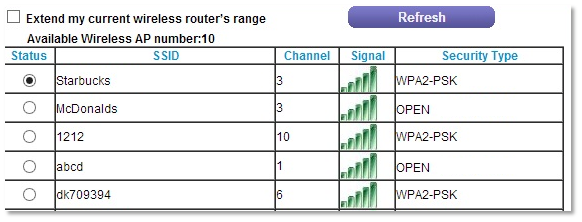
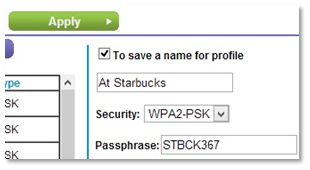
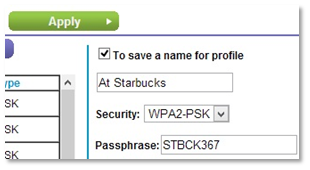
- Select To save a name for profile and type a profile name for this connection. Also, enter the password of the wireless network/Hotspot in the Passphrase field.
- Example of a Wi=Fi Network that requires a passphrase.
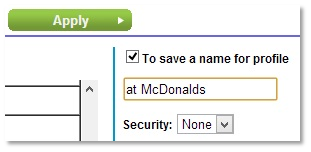
- Example of an Open Wi-Fi network or Wi-Fi that does not require a passphrase.
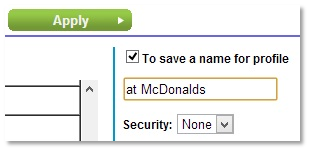
- Click Apply to save the changes.
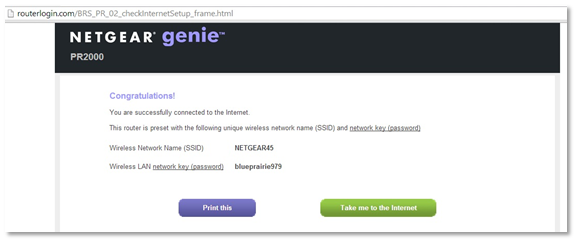
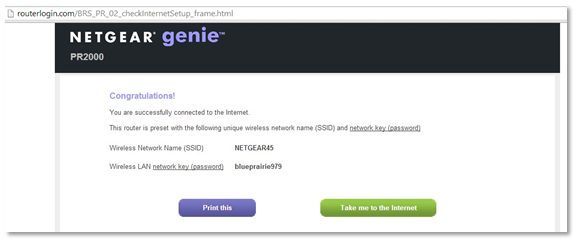
- When the Congratulations page displays, click Take me to the Internet.
Manual method:
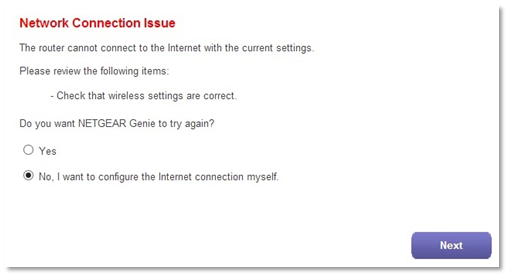
- If NETGEAR genie is still having difficulties connecting to the Wi-Fi Network or it is returning with a Network Connection Issue error, select No, I want to configure the router myself and click Next.
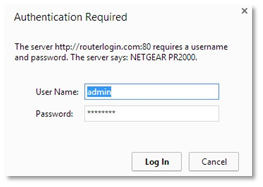
- If prompted to login, type in the word admin for the username and password for the password field.
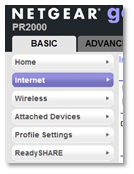
- From the Basic Tab, click Internet.
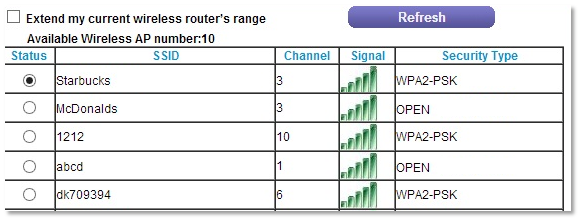
- Select the WiFi hotspot/wireless network you wish to connect to. If you can’t see the name of the wireless network that you want to connect to, click Refresh and/or scroll down through the list of available wireless networks.
- Select To save a name for profile option and type a profile name for this connection. Also, enter the password of the wireless network/Hotspot in the Passphrase field.
- Example of a Wi-Fi Network that requires a passphrase.
- Example of an Open Wi-Fi network or Wi-Fi that does not require a passphrase.
- Click Apply to save the changes.
- When the Congratulations page displays, click Take me to the Internet.
Last Updated:07/07/2025
|
Article ID: 24571