

This article explains how to configure your NETGEAR router automatically to Access Point mode (AP mode) once it detects that it is behind another router. You can use AP mode to:
- Set up a router as an access point.
- If you already have a router and want to add an AP router to the network.
- Extend your network using another router.
Note: If you are setting up a Nighthawk router for the first time and wish to use AP mode, see I’m setting up my Nighthawk router for the first time, how do I set it to Access Point (AP) mode?
To set your NETGEAR modem in AP mode:
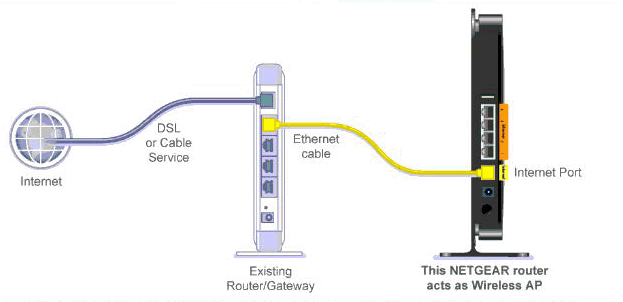
- Use an Ethernet cable to connect the AP router internet port to a LAN port on the existing main router:
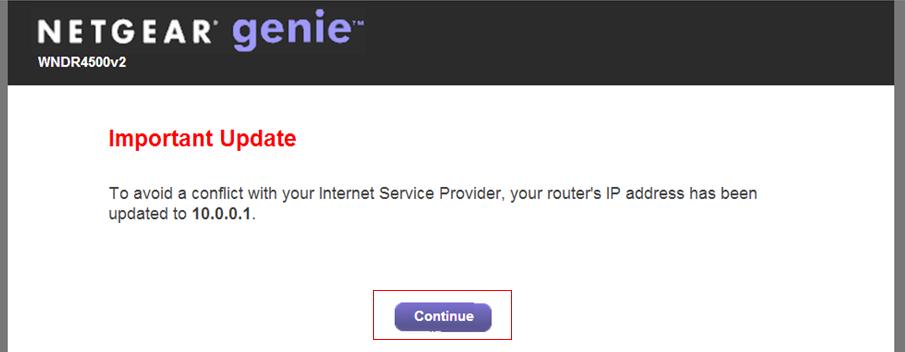
- Access the AP router web interface using a computer that is connected to one of the LAN ports of the NETGEAR router.
Note: If the main router IP address is set to 192.168.1.1, the AP router will automatically change its IP address to 10.0.0.1.
- Click Continue. NETGEAR genie will detect the other existing router on the network.
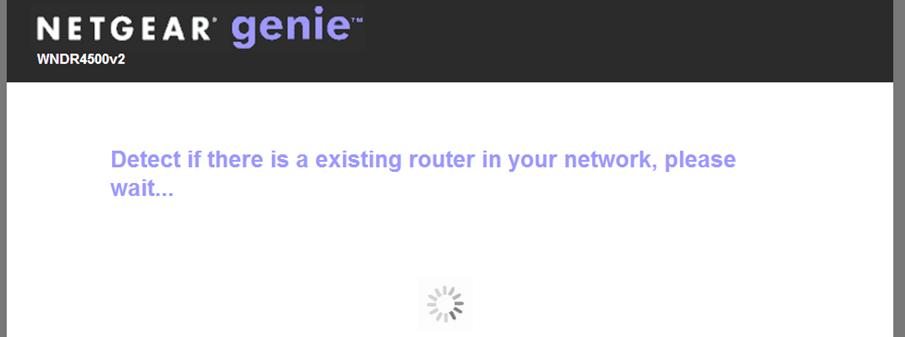
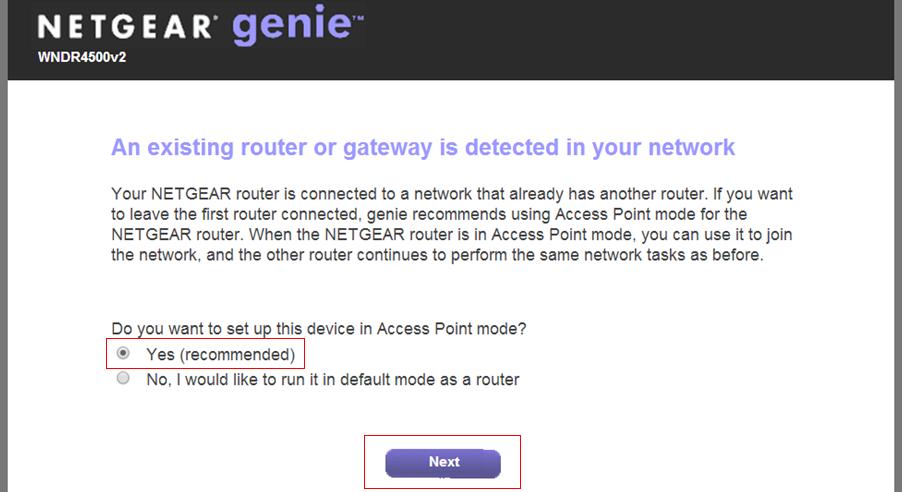
- Once the main router is detected, it will give you two options. Select Yes (recommended) and click Next.
- On the next page, select Get IP Address dynamically from existing router and click Next.

Note: If you want to set a static IP on the AP, select Use fixed IP Address and type the IP Address, IP Subnet Mask, Gateway IP Address, Primary DNS, and Secondary DNS.
To avoid IP conflicts, use an IP that is not assigned to the devices using the main router.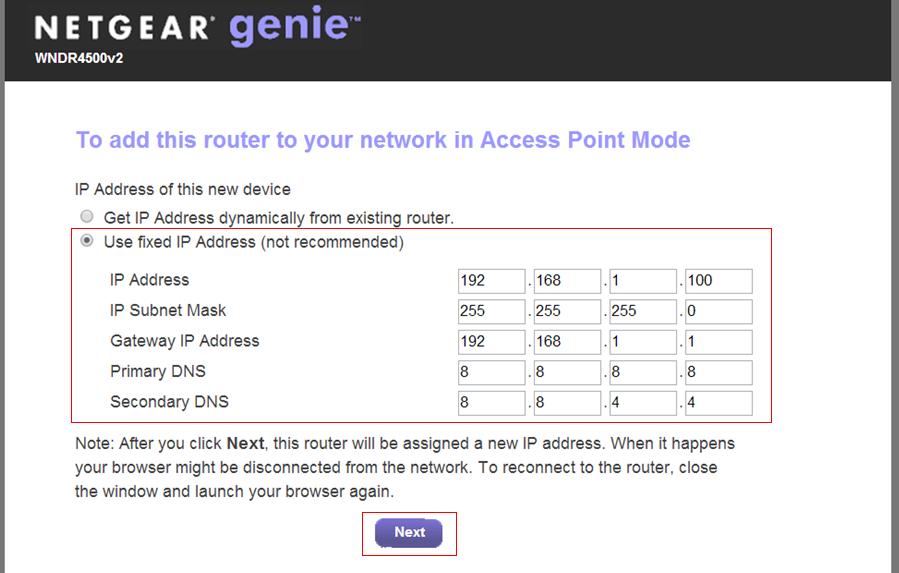
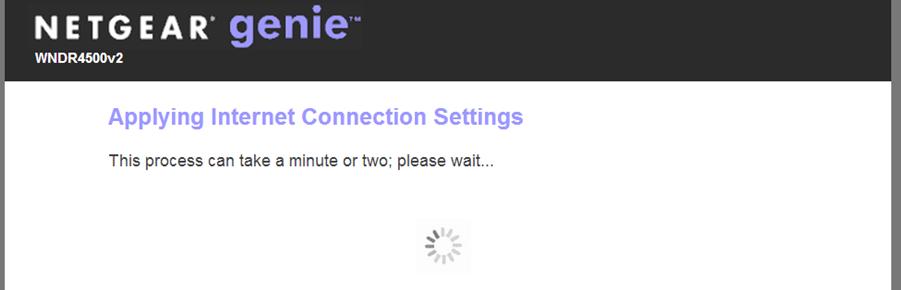
- The AP router will automatically reboot and return to the screen displaying the wireless settings of the main router as shown below:

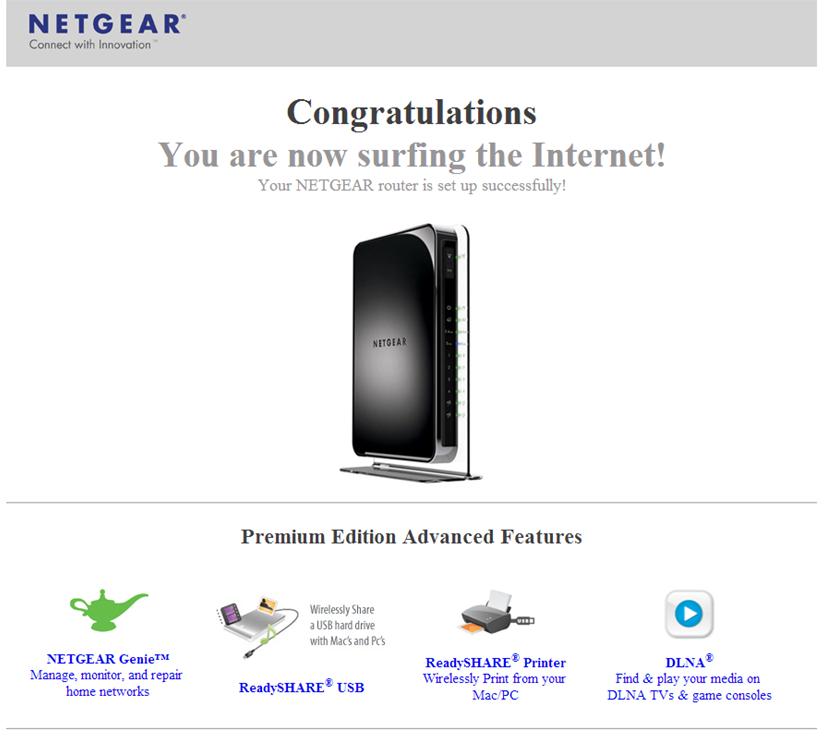
- Once successfully connected, you will see a webpage confirming that the setup is successful and the AP is now online.
- If you go back to the AP router user interface, you will see that it is now operating in Access Point mode.
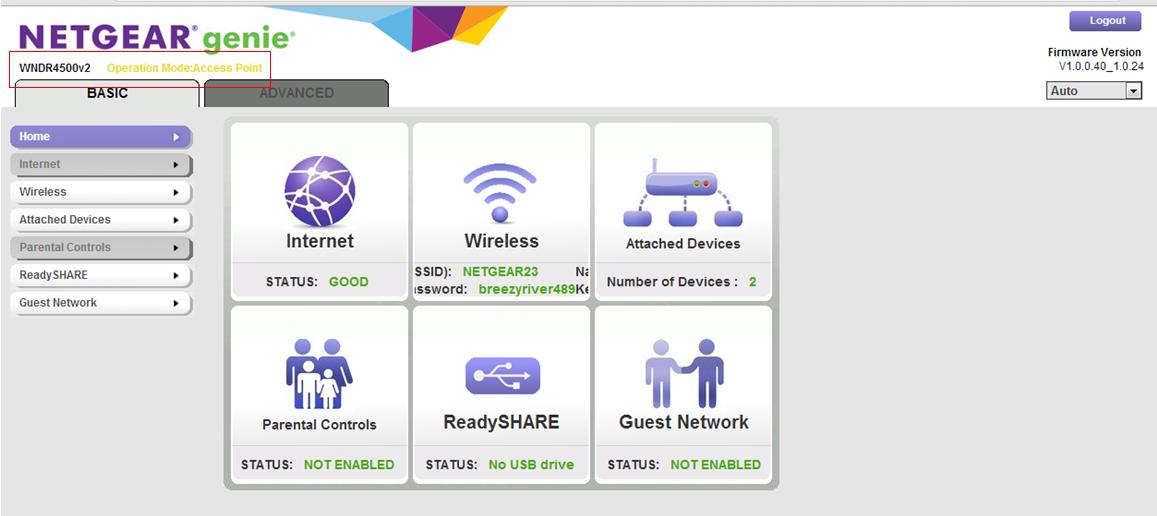
Note: If the router is in Access Point mode, you will notice that most of its router features are greyed out.
The following features will be unavailable once the router is in AP mode:- Setup Wizard
- Internet Settings
- WAN Setup
- LAN Setup
- Parental Controls
- Block Sites
- Block Services
- Port Forwarding/Port Triggering
- Dynamic DNS
- Static Routes
- Remote Management
- UPnP
- IPv6
- Traffic Meter
If you need to further configure the AP (to change wireless settings for example), connect your computer to the network. In a browser address bar type the AP IP address, using either the IP address that you set manually, or the one assigned to the AP by the main router. It is recommended to assign a static IP address on the AP so that it does not change.