

You can use Mac OS X Time Machine to back up data on your Mac computer to your ReadyNAS storage system.
To back up data on your Mac to your ReadyNAS system using Time Machine:
1. On the local admin page for your ReadyNAS, select Backup > Time Machine

2. Set the On-Off slider so the slider shows the On position.
3. In the Capacity field, enter the maximum amount of space on your ReadyNAS storage system that you want to devote to Time Machine backups.
Note: The first time you run Time Machine on your Mac, a sparse bundle is created on your ReadyNAS to store the backup data. The maximum size of the sparse bundle is the size that you specify in the Capacity field. Make sure that you allocate more space than is needed so that the sparse bundle can accommodate additional data later. After you run Time Machine for the first time, simply changing the number in the Capacity field does not increase the size of the sparse bundle.
If you want to increase the size of the sparse bundle, you must delete the sparse bundle and create a new Time Machine backup. For more information, see the How do I increase the capacity of the Time Machine backup on my ReadyNAS OS 6 storage system?
4. Create a password and enter it in the Password field.
5. Click the Apply button.
Your settings are saved.
6. On your Mac OS X computer, launch the Time Machine.
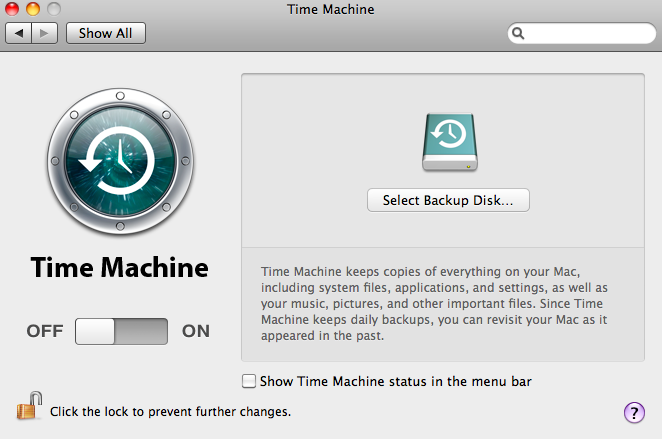
7. Click the Select Backup Disk button.
A pop-window displays that lists available disks, including your ReadyNAS system.

8. Select your ReadyNAS system and click the Use for Backup button.

9. In the Name field, enter ReadyNAS.
10. In the Password field, enter the password you created in step 4.
11. Click the Connect button.
Time Machine begins the backup, which can take several minutes to start.
This article applies to the following ReadyNAS and EDA storage system models:
-
ReadyNAS 102
-
ReadyNAS 104
-
ReadyNAS 312
-
ReadyNAS 314
-
ReadyNAS 316
-
ReadyNAS 516
-
ReadyNAS 2120
-
ReadyNAS 3220
-
ReadyNAS 4220
-
EDA 500