

You can access shares on your ReadyNAS system using a network-attached OS 9 device.
To access a share using a network-attached Mac OS 9 device, follow these steps:
- Ensure that the AFP file-sharing protocol is enabled on your ReadyNAS system.
For more information, see the How do I manage file-sharing protocols on my ReadyNAS Ultra series, Ultra Plus series, NVX Pioneer, or Pro Pioneer storage system? support article.
- In Finder, choose Go > Connect to Server.
The Connect to Server dialog box displays.
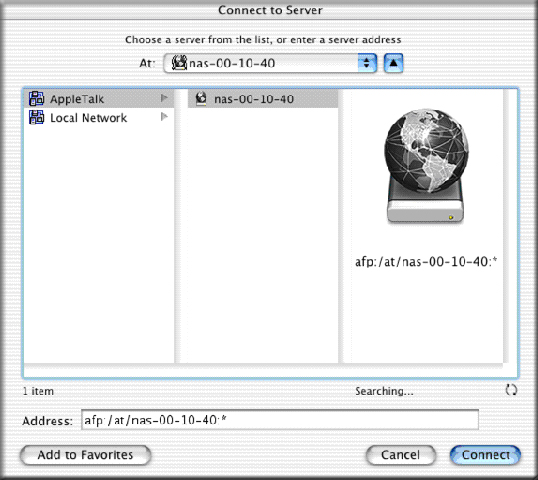
- Select your ReadyNAS system and click the Connect button.
You are prompted to log in to your ReadyNAS system.
- Enter a user ID and password and click the Connect button.
You can log in with administrator or user credentials. If you log in as a user, your access is limited by the settings configured by the ReadyNAS system administrator.
You are prompted to select a volume. Mac OS 9 calls your ReadyNAS shares volumes.
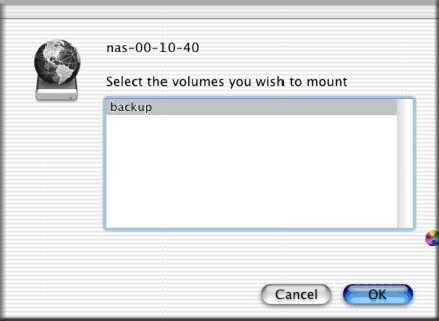
- Select a volume (share) and click the OK button.
Finder displays the volume contents in a window.
Last Updated:07/07/2025
|
Article ID: 21263