

Note: This article applies to legacy ReadyNAS systems running RAIDiator 4.
Step 1: Enable Time Machine service in Frontview
Go to the Backup/Time Machine tab, select the checkbox, enter a password for the Time Machine user (“ReadyNAS”), and the capacity that you wish to limit Time Machine to.

Step 2: Select the ReadyNAS for Time Machine “disk”
Bring up Time Machine on you Mac…
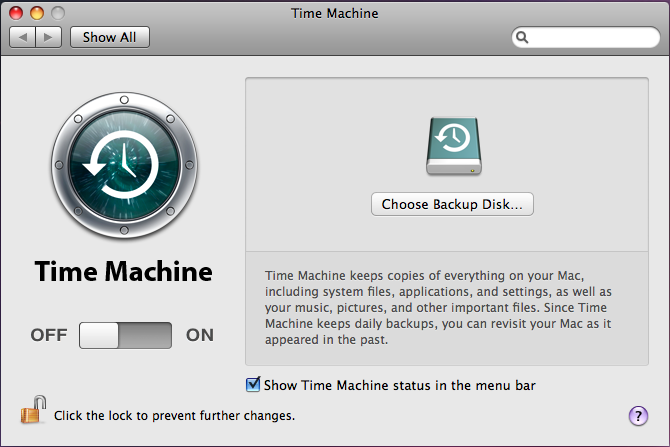
and click on Change Disk. You’ll see the ReadyNAS in the available list. Click Use for Backup.

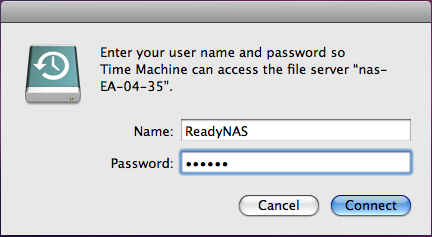
Step 3: Enter the ReadyNAS Time Machine user name and password
You’ll need to enter “ReadyNAS” (case-sensitive) as the user and the password you specified in FrontView in Step 1 and click Connect.
Completion
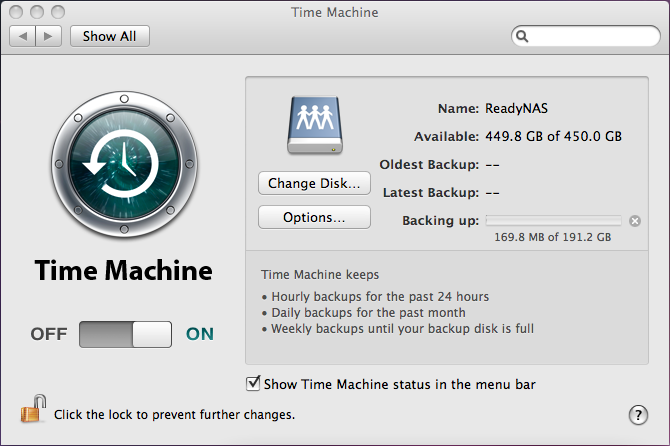
It’ll take a couple minutes for Time Machine to start the backup and you’ll see the backup progress as the backup occurs.
If you ever need to perform a complete restoration from your Time Machine backup, a step-by-step how-to is available at Time Machine restore from ReadyNAS
Questions:
- If I elect to disable Time Machine support, how can I restore the space taken up by Time Machine on the ReadyNAS?
Each Mac client using Time Machine can delete the sparsebundle image used by that client by going into the ReadyNAS share on the ReadyNAS device.
- Will changing the Time Machine capacity setting in FrontView expand my Time Machine backup capacity?
It will change the capacity allowed by the ReadyNAS, but the sparsebundle image created by the Mac is set to the initial capacity specified. The only way to increase that capacity is to remove the sparesebundle and redo the Time Machine setup.
- Is there a way to migrate an existing Time Machine sparsebundle that was created with the original 15 steps to the new location?
One of our forum users, bollar, has verified that it’s possible, but you will need to go through some steps to do this. First, you’ll need to follow the steps above to set up your Time Machine on the ReadyNAS. During the backup, cancel out, and you’ll see a sparsebundle image in the ReadyNAS share on the ReadyNAS device. The name will be of the form <host>_<mac>.sparsebundle. You’ll need to copy your original sparse bundle image and replace the one in the share. It’ll probably take awhile to do this as you will be copying the image to your Mac and then back to the share (make sure you have space on your Mac or a USB device before doing this). After the copy is complete, eject the ReadyNAS share and begin the Time Machine backup.
- What is the maximum capacity of a Time Machine backup destination?
At this time, the maximum capacity of a Time Machine backup destination on the ReadyNAS is 2TB.
- During the initial Time Machine backup, if you experience slowness and are using a virus scanning software, try disabling that.
- If Time Machine stops working or looks like it’s stalling, and you’re seeing indexing errors in your Time Machine log, it’s likely that Spotlight is probably trying to index your Time Machine volume on the ReadyNAS. To disable Spotlight scanning of the Time Machine volume,
- Force a Time Machine backup (“Back Up Now” from the Time Machine menu) to force Time Machine to mount the ReadyNAS Time Machine volume
- Start System Preferences and click on Spotlight
- Click on the Privacy tab
- Click on ‘+’ and add the visible Time Machine drive
- Close the System Properties window