

Objective: This article shows how to map a drive using Windows Explorer to your ReadyNAS. This applies to all firmware (RAIDiator 4.x, 5.x, ReadyNAS OS 6) and all Windows Operating Systems.
Unlike USB drives where you would access the drive through a drive letter, accessing the contents on the ReadyNAS is slightly different. You still have an option to access your ReadyNAS content using a drive letter, but you will need to manually “map” a drive letter to your content. Content on the ReadyNAS are represented as shares, such as media and backup. You can access them using what’s called a UNC (“Universal Naming Convention”) path. Quite simply in the case of the ReadyNAS, you would access these shares through the file explorer as:
\\hostname\sharename
Notice the convention of having two backslashes preceding the hostname and one backslash preceding the share name. For example, if your hostname is “nas-12-34-56? and you want to access the backup share, you would enter:
\\nas-12-34-56\backup
To get a listing of shares on the ReadyNAS, simply enter the hostname:
\\nas-12-34-56
Note this is Case sensitive.
Alternatively, you can access the ReadyNAS using its IP address — the IP address is displayed in RAIDar as well as the front page of FrontView.
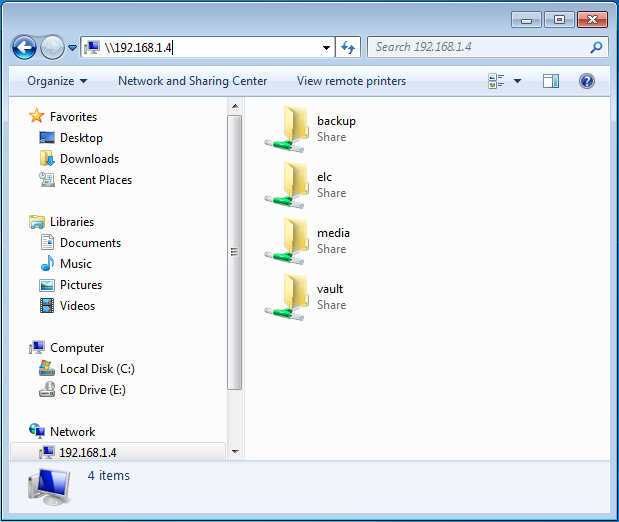
As you see the shares, you can map one or more of these shares to a drive letter, such as “n:”, “x:”, or whatever drive letter that has not been already used. To do this, simply right-click on one of the shares (i.e. backup). You will see a “Map Network Drive…” option.
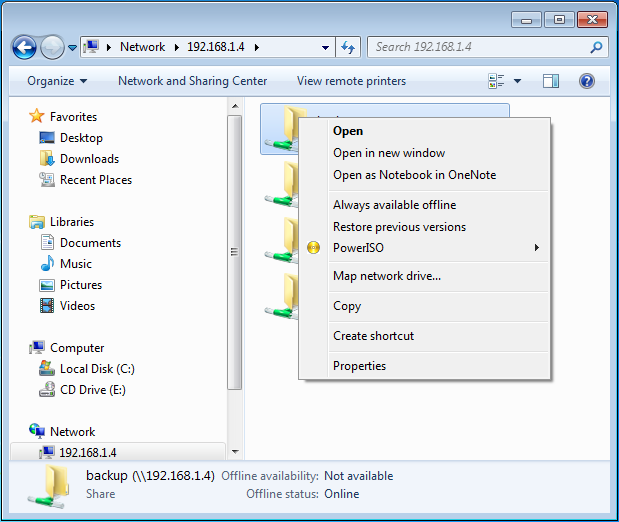
Select this option to select the drive letter you want to map the share to and select whether you want to reconnect the mapping upon logon — this is the “Reconnect at logon” checkbox.
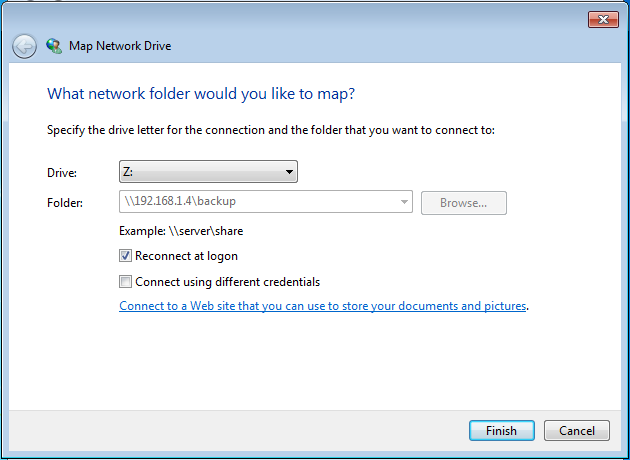
The “Reconnect at logon” option allows you to maintain the drive letter mapping to the share after you have logged off or rebooted your Windows PC.

If you had mapped your “backup” share to “z:”, in the future, you can simply enter z: in the File Explorer address bar. Or if you can conveniently use z: as your destination path for Office or Backup applications without having to memorize the hostname or IP address and the share name.
Drive letter mapping may be required for use with backup programs and other applications that are unable to connect to a network share using the UNC method.
CIFS/ SMB must be enabled on the NAS to support file-sharing
What if the above is not working.? If the above is not working, you need to look at permissions. For x86 NAS, if the 'guest access' tickbox, is unticked, then you will be prompted for username and password. This is under Shares> Share Listing > CIFS
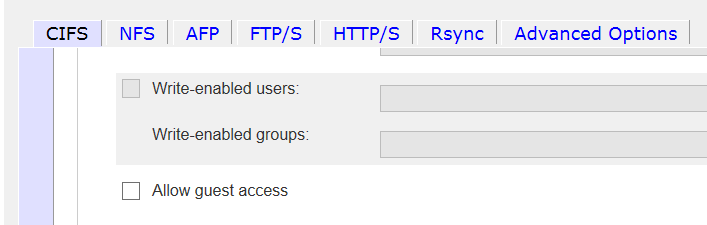
Similarly for OS 6, if 'anonymous' is unchecked, you will be prompted for username and password. This is under the Share name, left-click for Settings, Network access, and Security menu.
